
Implementing an Email Queue with ASP.NET Using Hosted Service and Channel
A real-time email queue in ASP.NET

In modern web application development scenarios, designing an email queue for sending emails is quite common.
Imagine you need to design an email queue to receive emails that need to be sent from multiple sources (services, controllers,…) and send these emails using various senders.
To achieve this, you need to combine the email queue with a hosted service to create a real-time email sending service. This service will ensure that emails are processed and sent as soon as they enter the queue.
Main tech stack:
Hosted Service: A background service running alongside the main web application for handling tasks like sending emails.
Channel<T>: A thread-safe, asynchronous data structure for passing data between producers and consumers, ideal for high-throughput scenarios.
Why Channel<T> instead of ConcurrentQueue<T>?
In a high-throughput, multi-threaded environment, choosing the right data structure for handling concurrent tasks is crucial. While both ConcurrentQueue<T> and Channel<T> can handle multi-threaded scenarios, they have significant differences in their design and performance.
Thread-Safety: Both
ConcurrentQueue<T>andChannel<T>are thread-safe, meaning they can handle multiple producers and consumers without data corruption. However,Channel<T>is optimized for asynchronous operations, which is crucial in web applications where responsiveness and resource management are key.Backpressure Handling:
Channel<T>provides built-in support for backpressure, which helps manage the load when producers are generating items faster than consumers can process them. This ensures that your application remains stable under heavy load, preventing crashes and slowdowns.Asynchronous API:
Channel<T>is designed with asynchronous programming in mind, making it easier to work withasyncandawaitpatterns. This is particularly useful in ASP.NET Core applications where asynchronous operations are the norm.Performance: Channels can offer better performance in high-concurrency scenarios due to their design, which avoids some of the contention issues that can arise with
ConcurrentQueue<T>. This means your email queue will be more efficient and can handle a higher volume of emails.Code Simplicity: Using
Channel<T>can lead to simpler and more maintainable code. SinceChannel<T>supports both bounded and unbounded modes, you can easily configure it to suit your application's needs without complex custom logic.
In summary, while ConcurrentQueue<T> is a solid choice for many concurrent scenarios, Channel<T> offers additional benefits that make it more suitable for real-time applications and better integration with hosted services.
Step 1: Creating a Simple Email Sender Class
First, we'll create a simple class that simulates sending emails. This EmailSender class includes a method SendEmailAsync that mimics the delay of sending an email and then prints a message to the console.
public class EmailSender
{
    public async Task SendEmailAsync(string email)
    {
        await Task.Delay(500);
        Console.WriteLine($"Email sent to: {email}");
    }
}
Step 2: Creating the Email Queue
Next, we will create the EmailQueue class using Channel<string> to manage our email queue. This class will have methods to enqueue and dequeue emails.
public class EmailQueue
{
    private readonly Channel<string> _channel;

    public EmailQueue()
    {
        _channel = Channel.CreateUnbounded<string>();
    }

    public async Task EnqueueAsync(string email)
    {
        await _channel.Writer.WriteAsync(email);
    }

    public async Task<string> DequeueAsync(CancellationToken cancellationToken)
    {
        return await _channel.Reader.ReadAsync(cancellationToken);
    }
}
Step 3: Creating the Hosted Service
Now, let's implement the EmailHostedService class, which will act as a background service to continuously dequeue and send emails from the EmailQueue.
public class EmailHostedService : BackgroundService
{
    private readonly EmailQueue _emailQueue;
    private readonly EmailSender _emailSender;

    public EmailHostedService(EmailQueue emailQueue, EmailSender emailSender)
    {
        _emailQueue = emailQueue ?? throw new ArgumentNullException(nameof(emailQueue));
        _emailSender = emailSender ?? throw new ArgumentNullException(nameof(emailSender));
    }

    protected override async Task ExecuteAsync(CancellationToken stoppingToken)
    {
        // When using ConcurrentQueue directly, this while loop would continuously dequeue items without any delay.
        // Without appropriate delay mechanisms, this can lead to excessive CPU usage and potential application crashes.
        while (!stoppingToken.IsCancellationRequested)
        {
            try
            {
                var email = await _emailQueue.DequeueAsync(stoppingToken);
                await _emailSender.SendEmailAsync(email);
            }
            catch (Exception ex)
            {
                // Handle other exceptions
                Console.WriteLine($"Error sending email: {ex.Message}");
            }
        }
    }
}
Step 4: Registering Services
Now, let's register the EmailQueue, EmailSender, and EmailHostedService with the WebApplication program in ASP.NET.
var builder = WebApplication.CreateBuilder(args);

builder.Services.AddControllersWithViews();
builder.Services.AddSingleton<EmailQueue>();
builder.Services.AddSingleton<EmailSender>();
builder.Services.AddHostedService<EmailHostedService>();

var app = builder.Build();
Step 5: Creating a Controller Action to Queue Emails
Now, let's create a controller action that queues emails using the EmailQueue.
public class EmailController : ControllerBase
{
    private readonly EmailQueue _emailQueue;

    public EmailController(EmailQueue emailQueue)
    {
        _emailQueue = emailQueue;
    }

    public async Task<IActionResult> SendEmail(string email)
    {
        await _emailQueue.EnqueueAsync(email);
        return Ok("Email has been queued.");
    }
}
Here Are the Results
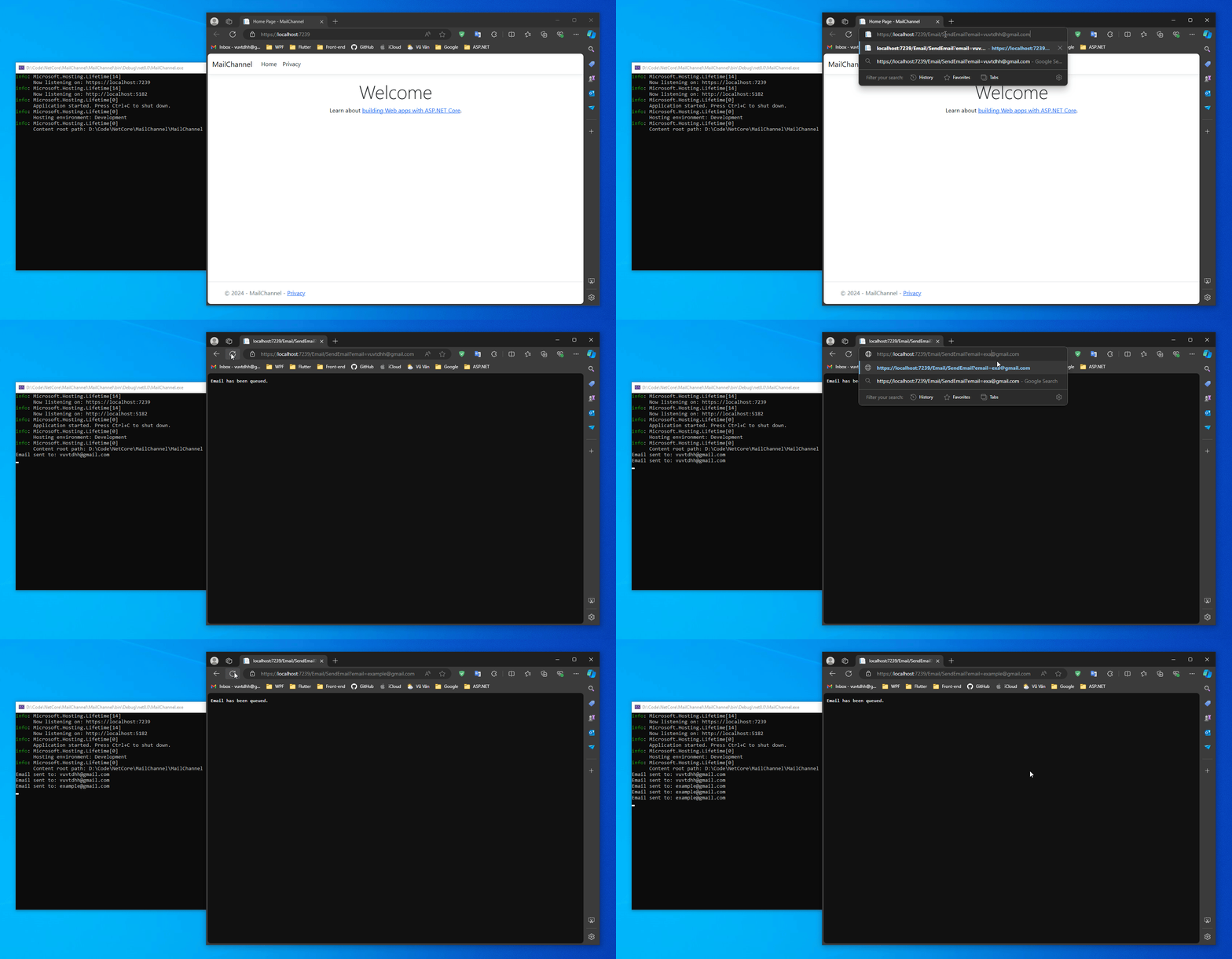
Source code: https://github.com/vuvtdhh/MailChannel